


Using Claude with DataDoe MCP
This guide shows how to connect DataDoe MCP to Claude as a custom connector. You can then query your DataDoe workspace directly from Claude.
Prerequisites
- A DataDoe account with your Amazon connections set up.
- Access to
claude.aiin a web browser. - Permission to add connectors in your Claude workspace. Team or business workspaces often require admin access.
During setup you will be redirected to DataDoe to sign in and approve access.
Step 1: Copy the DataDoe MCP URL
Copy this URL: https://mcp.datadoe.com/mcp/v1.
Step 2: Add DataDoe as a custom connector in Claude
- Go to
claude.ai. - Open Customize → Connectors.
- Click Add in the top-right corner.
- Set Name to
DataDoe. - In MCP Server URL, paste the URL from Step 1.
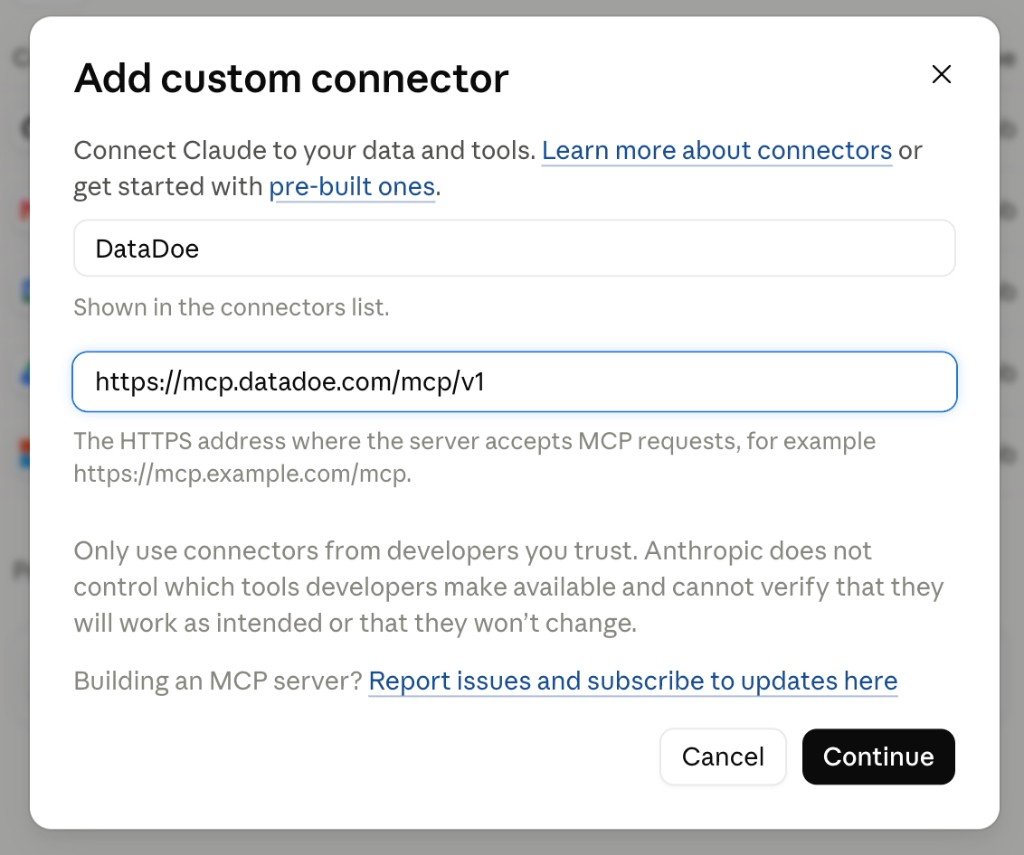
- Click Continue.
- Keep the detected authentication and OAuth options.
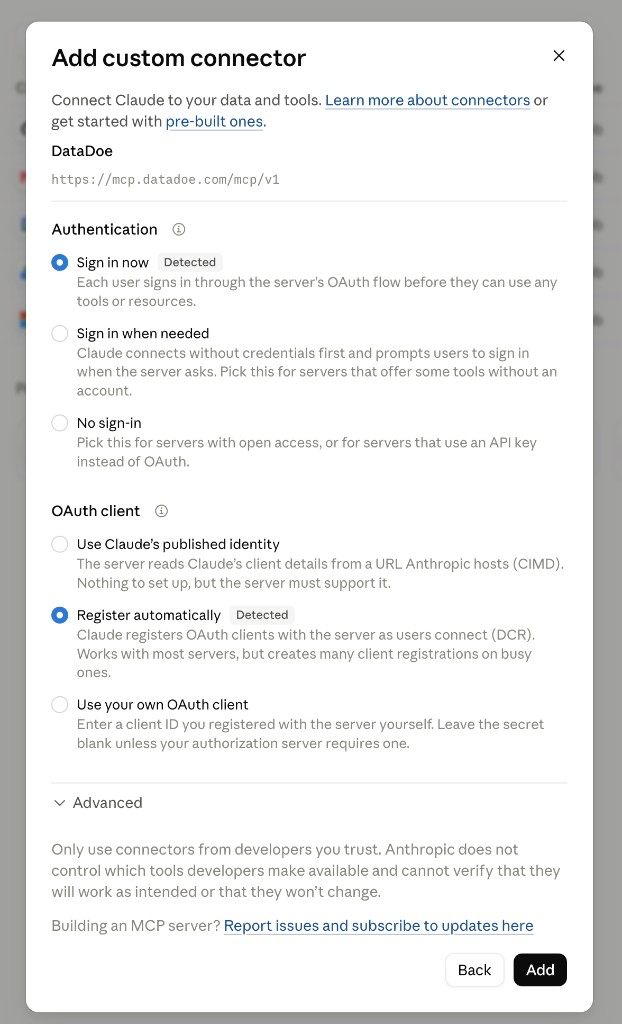
- Click Add in the lower-right corner.
- When prompted, click Connect and sign in to DataDoe.
- Optionally, change the permissions for each listed tool.
Team or Enterprise workspace. An Owner first adds the connector under Organization settings → Connectors (Add → Custom → Web). After that, each member opens Customize → Connectors and selects Connect next to DataDoe to sign in.
One connector, every Claude surface. The same flow works in the Claude Desktop app. Once added, the DataDoe connector is also available in Claude Code (sign in with the same account) and in the Claude add-in for Excel, Word, and PowerPoint. You connect once.
Step 3: Test the connection
- Start a new chat in Claude.
- Send a prompt that uses DataDoe data, for example:
Show me my Amazon Seller Central sales for the last 7 days.If Claude returns real data, you are connected.
Security
- Claude uses an OAuth-style sign-in and approval flow to access DataDoe.
- Access is scoped to the permissions of the DataDoe user who approved the connection.
- To revoke access, go to DataDoe MCP Integrations (opens in a new tab) or remove the connector from Claude.
Troubleshooting
I do not see Connectors or Add custom connector
- Custom connectors are available on every Claude plan. The Free plan is limited to one connector.
- If you still do not see the option, your workspace policy may exclude custom connectors. Ask your workspace admin.
- In a Team or Enterprise workspace, only Owners can add custom connectors. Ask your workspace Owner to add DataDoe under Organization settings → Connectors. It will then appear in your Customize → Connectors list, ready to connect.
Sign-in or approval keeps looping
- Allow pop-ups and redirects for
claude.aiand DataDoe. - Disable strict tracking protection or browser extensions that block third-party cookies.
- Retry in a private window to rule out extension issues.
Claude says "not authorized" or DataDoe returns an auth error
- Re-add the connector and complete the DataDoe approval prompt again.
- Make sure you are signed in to the correct DataDoe workspace and user.
- If needed, revoke and reauthorize access from DataDoe MCP Integrations (opens in a new tab).
DataDoe MCP resources
Check the following resources for more information:
- MCP server URL:
https://mcp.datadoe.com/mcp/v1 - Interactive Data Scheme
- Data Scheme JSON: https://api.datadoe.com/api/v1/spec/data-scheme
- Need help? Use the contact form